Mastering OBS: Essential Features for Streamers
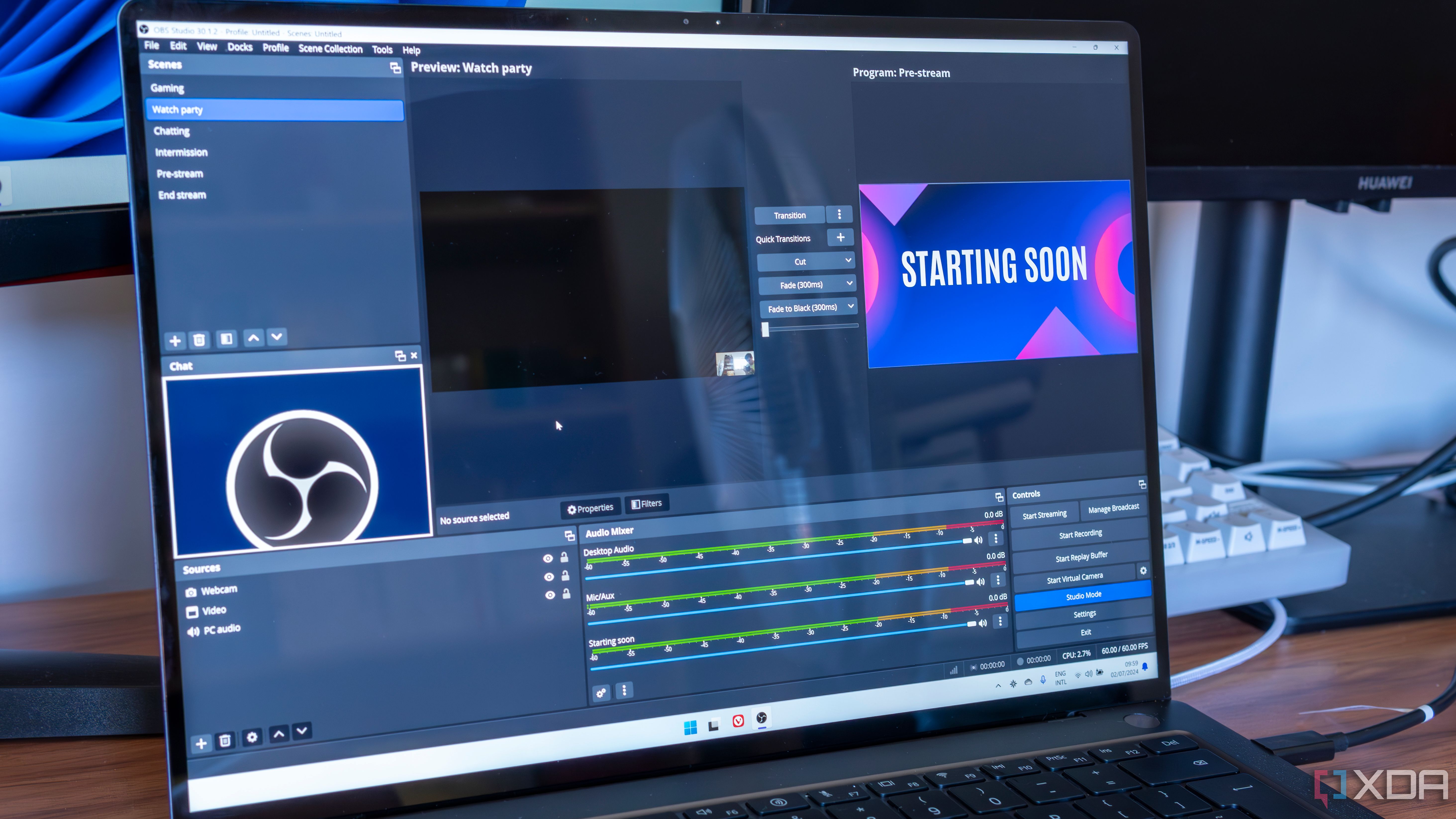
Mastering OBS is essential for any serious streamer looking to enhance their broadcast quality and engage their audience effectively. Open Broadcaster Software (OBS) provides a multitude of features that can significantly elevate your streaming experience. One of the key features is scenes, which allow you to create different layouts and arrangements of your video and audio sources. For instance, you can have a dedicated scene for your gameplay, another for your webcam feed, and even one for overlays or alerts. Utilizing scenes efficiently can help maintain viewer interest and professionalism during your streams.
Another critical feature to explore in OBS is the Audio Mixer. This tool enables streamers to control multiple audio sources seamlessly, ensuring that your game sound, microphone input, and music tracks are well-balanced. By adjusting the volume levels and applying filters such as noise suppression or gain control, you can deliver clear audio to your audience. Additionally, familiarizing yourself with features like hotkeys can streamline your workflow, allowing you to switch scenes or mute audio with a simple keystroke, thus enhancing your overall streaming efficiency.
5 Hidden OBS Tricks to Enhance Your Live Stream
Open Broadcaster Software (OBS) has become a staple for streamers looking to deliver high-quality content. While many users are familiar with its basic functionalities, there are several hidden tricks that can significantly enhance your live streaming experience. Here are five tips that can elevate your broadcast:
- Use Hotkeys: Setting up hotkeys for various actions, such as switching scenes or starting/stopping streams, can streamline your workflow and make your streams more dynamic.
- Scene Collection Management: Create different scene collections for various types of streams like gaming, tutorials, or live Q&A sessions. This allows for a tailored setup with ease.
- Add an Overlay: Spice up your stream with customized overlays that can display alerts, chat messages, or other important information, creating an engaging viewer experience.
- Audio Filters: Utilize built-in audio filters to enhance your microphone quality by reducing background noise and improving clarity.
- Stream Delay: Implement a stream delay to prevent stream sniping, especially in competitive gaming, allowing you more control over your broadcast.
Why Every Streamer Needs These OBS Settings for Optimal Performance
Optimal OBS settings are crucial for every streamer looking to elevate their performance and enhance viewer experience. Using Open Broadcaster Software (OBS)
Moreover, adjusting your OBS settings can also help in managing your computer's resources effectively. For instance, specifying the right encoder settings can reduce CPU workload while ensuring high-quality output. Here are some key settings to focus on for optimal performance:
- Video Bitrate: Ensure your bitrate is appropriate for your upload speed.
- Resolution: Stream at a resolution that balances quality and performance.
- Frame Rate: Choose a frame rate that matches your content style.
By paying attention to these factors, every streamer can create a smoother and more professional streaming experience.